


How to set up Microsoft Authenticator App

Feb 27, 2026
 40
40
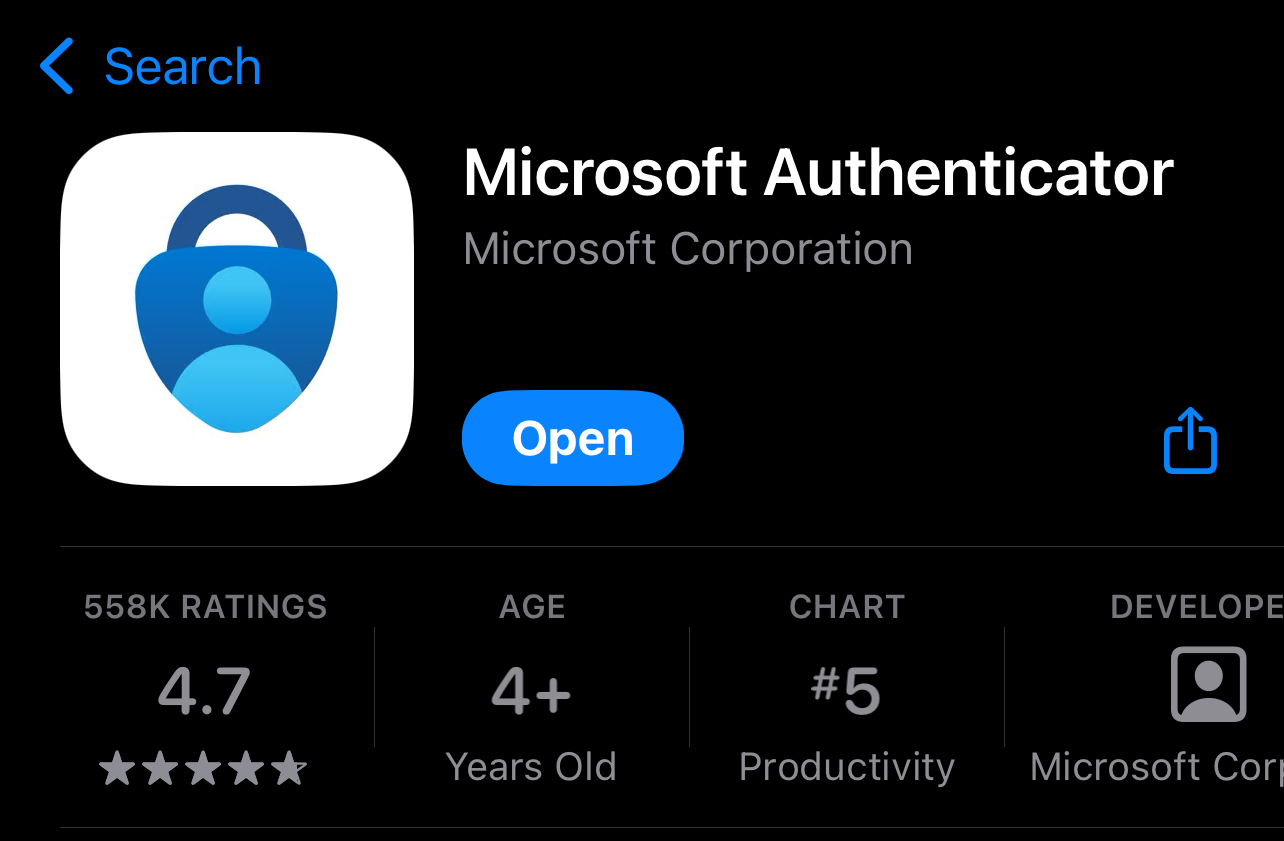
First install the Microsoft Authenticator app onto your phone through the App Store.
Looks like this
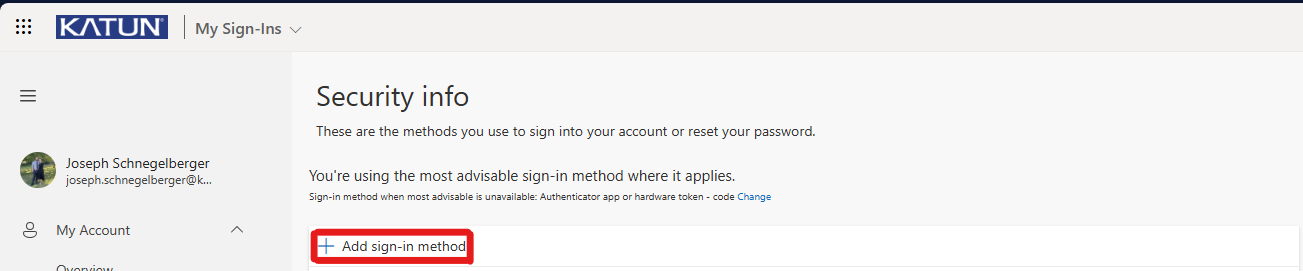
- In a browser on your computer, sign in to the My Account portal with your work or school account
- Select "Add sign-in method"
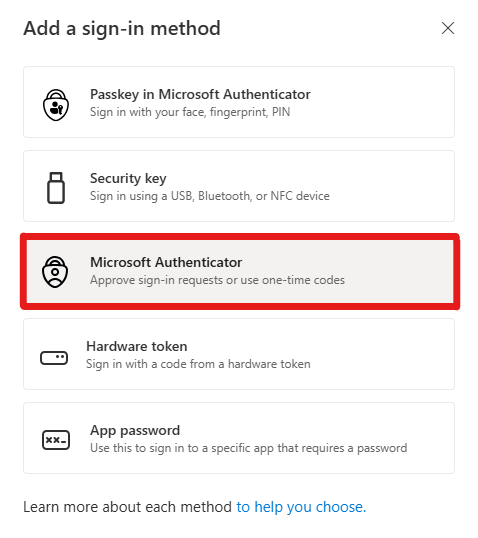
- Select "Microsoft Authenticator"
- Select "Next"
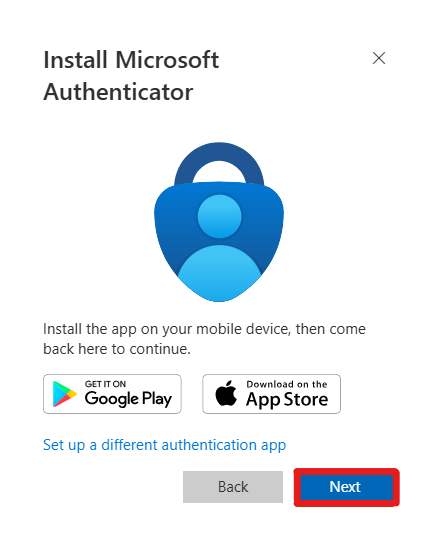
- Select "Next"
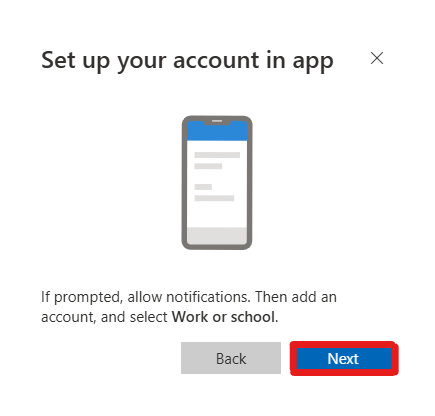
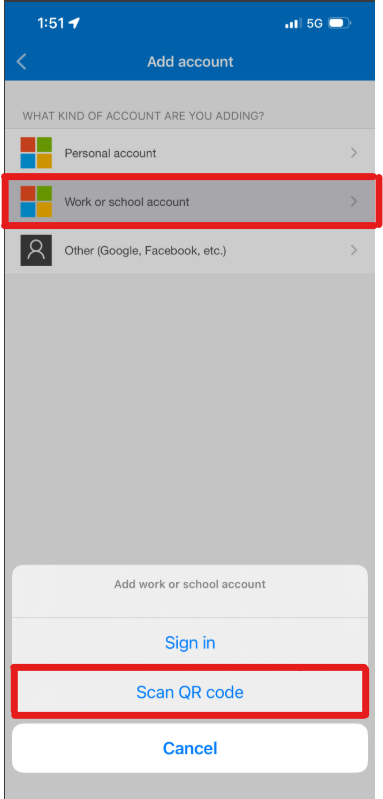
- Open your Microsoft Authenticator app on your phone and select add a Work or school account. Then choose the option "Scan QR code"
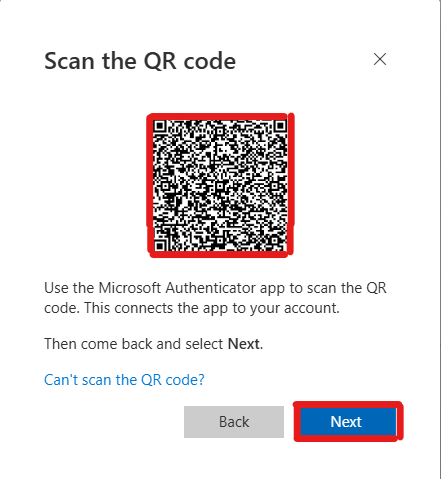
- Point your phones camera at the QR code that is being shown on your computer and then select "Next"
- Enter the number shown on your computer screen into the apps prompt on your phone.
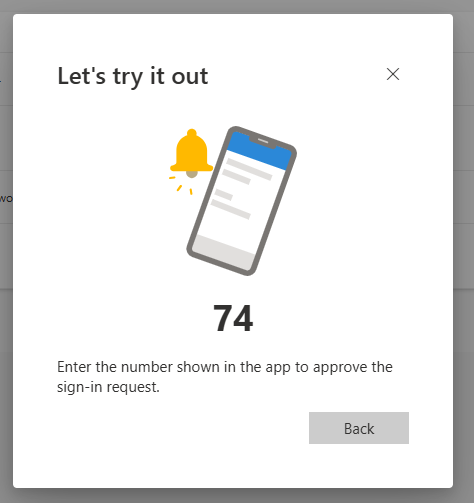
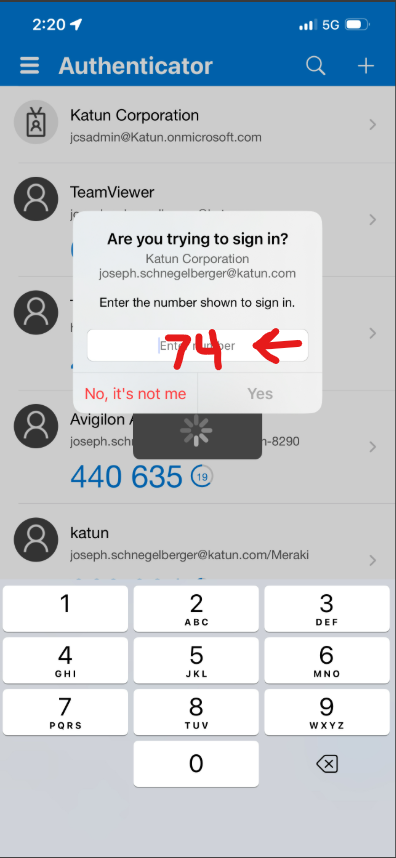
The MFA authenticator is now set up to your Katun Office 365 account!
Now let's set it up as your default method.
- Select the hyperlink "Change" at the top and select "App based authentication - notification"
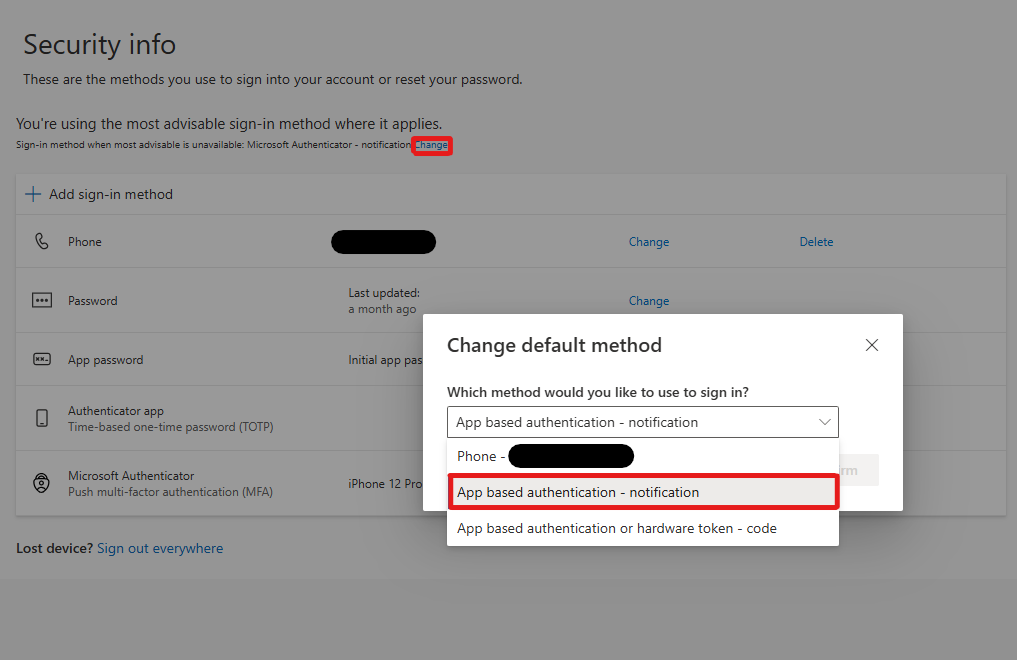
All set!

